

If you manage multiple services across different subdomains, you've probably run into this annoying problem: your browser shows ALL saved passwords for every subdomain whenever you try to log in.
For example, if you have credentials saved for mail.example.com, vpn.example.com, and admin.example.com, clicking the username field on any of these sites shows every single credential in the dropdown. This gets messy fast, especially if you have dozens of subdomains.
Why Does This Happen?
By default, browsers match saved passwords based on the main domain rather than the full subdomain. They treat anything.example.com as just example.com when looking up credentials. This is meant to be a convenience feature, but it becomes a nuisance when you legitimately use many subdomains with different logins.
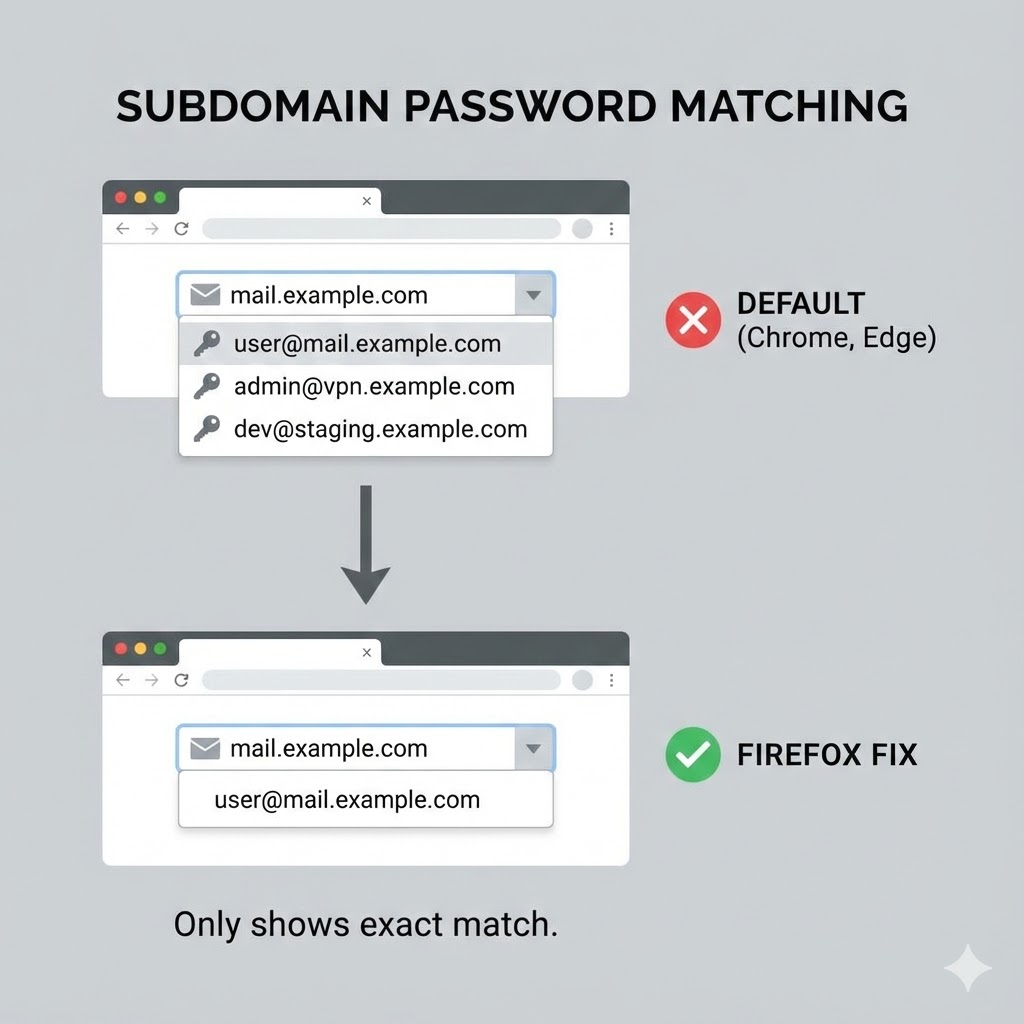

The Firefox Fix
Firefox is the only major browser that lets you disablnly major browser that lets you disabe this behavior with a simple settings change.
Step-by-Step Instructions
Open Firefox and type about:config in the address bar. Click Accept the Risk and Continue when the warning appears.
In the search box, type signon.includeOtherSubdomainsInLookup and double-click the setting to change its value from true to false.

Restart Firefox to ensure the change takes effect.
[IMAGE: Screenshot of about:config with the setting highlighted]
What This Does
When set to false, Firefox will only show credentials that match the exact subdomain you're currently visiting. So logging into mail.example.com will only show passwords saved specifically for mail.example.com, not every other subdomain credential you have.
What About Chrome and Edge?
Unfortunately, Chrome and Edge both have the same default behavior of merging subdomain credentials, but they do not offer any way to change it.
There is no chrome://flags option, no hidden setting, and no configuration file you can edit. Google has not added this as a user-configurable option.
Since Microsoft Edge is built on the same Chromium engine as Chrome, it inherits this limitation as well.
Workarounds for Chrome and Edge Users
If you're stuck using Chrome or Edge and this behavior bothers you, here are your options:
Use a Third-Party Password Manager
Password managers like Bitwarden, 1Password, KeePassXC, and others give you much more control over URL matching. Most of them let you configure exact URL matching so credentials only appear on the specific subdomain where they were saved.
To use this approach, install your preferred password manager browser extension and disable Chrome or Edge's built-in password saving in Settings then Passwords. Import your existing passwords into the password manager and configure the URL matching settings to use exact or subdomain-specific matching.
Switch to Firefox
If subdomain separation is important to you and you want to use a browser's built-in password manager, Firefox is currently the only mainstream option that supports this.

Quick Comparison
Firefox merges subdomains by default but this can be disabled. Chrome, Edge, and Safari all merge subdomains by default and offer no way to disable it.
Final Thoughts
This is one of those small annoyances that becomes a big deal when you're managing lots of services. Firefox users can fix it in under a minute with the about:config tweak. Chrome and Edge users will need to either live with it or switch to a dedicated password manager that offers better URL matching controls.
Hopefully Google and Microsoft will add this option in the future, but for now, Firefox has the edge when it comes to password management flexibility.