
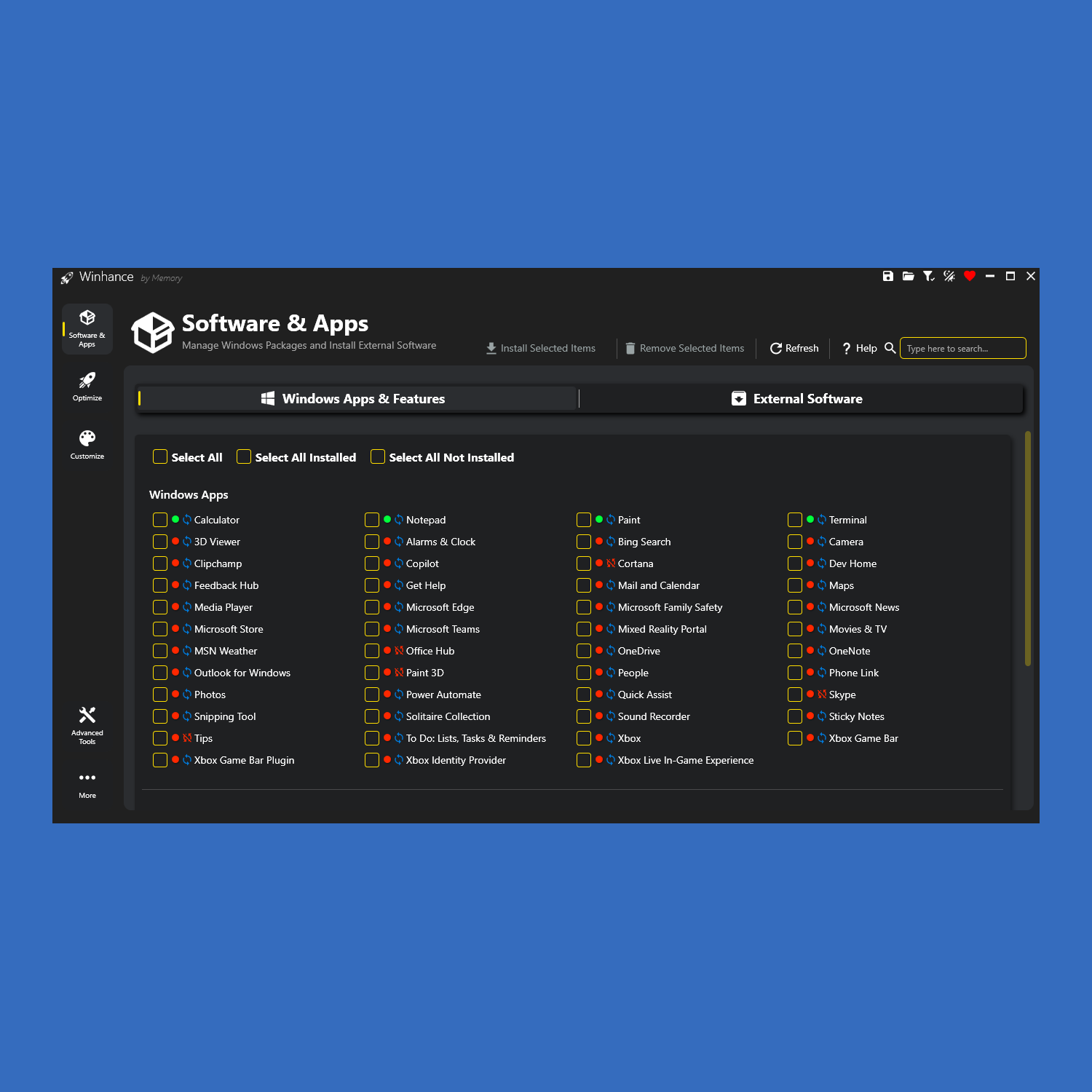
Windows 10 and Windows 11 are powerful, but they come packed with features, apps, and background processes most people never use. Out of the box, Windows can feel cluttered, slow, and full of things you don’t want. That’s where a good optimization tool changes everything.
This guide breaks down a powerful, free, open-source utility that lets you clean up Windows, boost performance, improve privacy, and customize the system exactly the way you want it. No complicated scripts, no registry hunting, no guessing. Just a clean interface that does the work for you.
Why Windows Needs Help
A fresh Windows install usually includes:
- Unwanted built-in apps
- Background services you’ll never use
- Telemetry and privacy settings enabled by default
- Features like OneDrive, Edge integrations, Copilot, and Recall
- Inconsistent menus and deeply buried options
The result is a system that works, but not one that is really tuned for you. A good enhancement tool fixes that in minutes.

What This Tool Can Do
1. Clean Up Apps And Features
You can remove or disable:
- Built-in apps like Edge, OneDrive, Copilot, Recall, and optional Windows components
- Preinstalled packages that slow your system down
You can also install useful software instantly, like browsers, document viewers, and other programs you always need after a fresh setup.

2. Boost Performance And Stability
Performance tuning is normally hidden across ten different menus in Windows. This tool groups everything together so you can quickly adjust:
- Privacy and security controls
- Gaming and performance tweaks
- Power settings
- Windows Update behavior
- Notifications
- Sound options
3. Customize The Windows Experience
If you like making Windows look and feel better, you’ll get options for:
- Light and dark mode settings
- Taskbar behavior
- Start menu layout
- File Explorer tweaks
4. Save And Restore Your Setup
One of the best parts is the configuration system. You can:
- Export all your settings into a config file
- Import it later on another PC or after a reinstall
- Use the recommended preset for safe, effective debloating
This means you never have to “redo everything” again.
5. Advanced Tools For Power Users
- Create custom Windows installation ISOs
- Integrate drivers
- Generate an autounattend.xml for automated installs
Is It Safe?
Yes. It’s open-source, meaning anyone can inspect the code. Most changes can be reversed, and every option clearly explains what it does. Some Windows components can’t be restored once removed, but the tool clearly warns you before applying those actions.
What People Are Saying
Well-known tech sites and creators have praised it, including:
- XDA-Developers
- BetaNews
- Mike’s Unboxing
Thousands of users use it daily to make Windows faster, cleaner, quieter, and more private.
Who This Is For
You’ll love this tool if you:
- Want Windows to feel lightweight and clean
- Reinstall Windows often
- Like more control over privacy and system behavior
- Game and want better performance
- Are tired of Windows bloat and background junk
How To Get Started
The easiest installation method is a single PowerShell command:
irm "https://get.winhance.net" | iexOr you can directly download the installer from the latest release on GitHub.
Final Thoughts
If your PC feels slower than it should, or if you’re tired of apps and background processes you didn’t ask for, this tool can completely transform how Windows feels. Less bloat. More speed. Better privacy. A cleaner, more personal experience.
Your PC is something you use every day. It should run the way you want it to.