

What to know
When you make a voice or video call on many messaging apps, your device uses a protocol called STUN (Session Traversal Utilities for NAT) to establish a peer-to-peer connection. During this process, your public IP address gets exchanged in STUN "binding response" packets.
Anyone on the other end of the call can capture these packets using a tool like Wireshark (or its CLI version, TShark) and extract your real IP address — even if you have a VPN turned on.
This article covers how the technique works, which platforms are vulnerable, and how to defend yourself.
How it works
The core idea is simple: listen for STUN binding responses on your network interface and filter out your own IP. Whatever IPs are left belong to the person you are calling.

STUN is a normal part of how peer-to-peer calling works. It is not a bug or exploit — it is how NAT traversal is designed. But it means your public IP is being transmitted in plaintext UDP packets that anyone with basic tools can read.

Watch it in action — this short video walks through the process of tracking a public IP from a call using Wireshark:
Automating it with a batch script
This process can be fully automated using a Windows batch file and TShark (Wireshark's command-line interface). Here is what the script does step by step:
1. Get your own public IP — so it can be excluded from the results later.
2. Check if TShark is installed — looks for tshark.exe in the standard Program Files directories. If it is not found, it opens the Wireshark download page.
3. List available network interfaces — using tshark -D, which shows all interfaces on your system (Wi-Fi, Ethernet, VPN adapters, etc.).
4. Prompt you to pick an interface — typically your Wi-Fi or Ethernet adapter.
5. Run a filtered packet capture — this is the core command that does everything.
The key TShark filters
The capture command uses three display filters that work together:
Filter 1: STUN type = Binding Success Response
Only shows successful STUN binding responses. Ignores requests, errors, and other noise.
Filter 2: XOR-Mapped Address attribute present
Only shows packets containing the XOR-Mapped Address field. This is specifically where the remote peer's public IP is stored. Other binding response fields contain server IPs and your own IP, which are not useful.
Filter 3: STUN attribute IPv4 does not equal your public IP
Excludes your own IP from the results so you only see the other person's address.
The output displays only the extracted IP addresses — nothing else. It is essentially a command-line Wireshark that shows you exactly one thing: the IP of whoever you are calling.

The core TShark command
Here is the simplified version of what the batch script runs:
tshark -i [interface] -f "udp" -Y "stun.type == 0x0101 && stun.att.type == 0x0020 && stun.att.ipv4 != [your_ip]" -T fields -e stun.att.ipv4Breaking this down:
-
-i [interface]— which network interface to listen on -
-f "udp"— capture filter for UDP only (STUN runs over UDP) -
-Y— display filter with the three conditions above -
0x0101— STUN Binding Success Response type -
0x0020— XOR-Mapped Address attribute type -
-T fields -e stun.att.ipv4— output only the IP address field
Platform test results
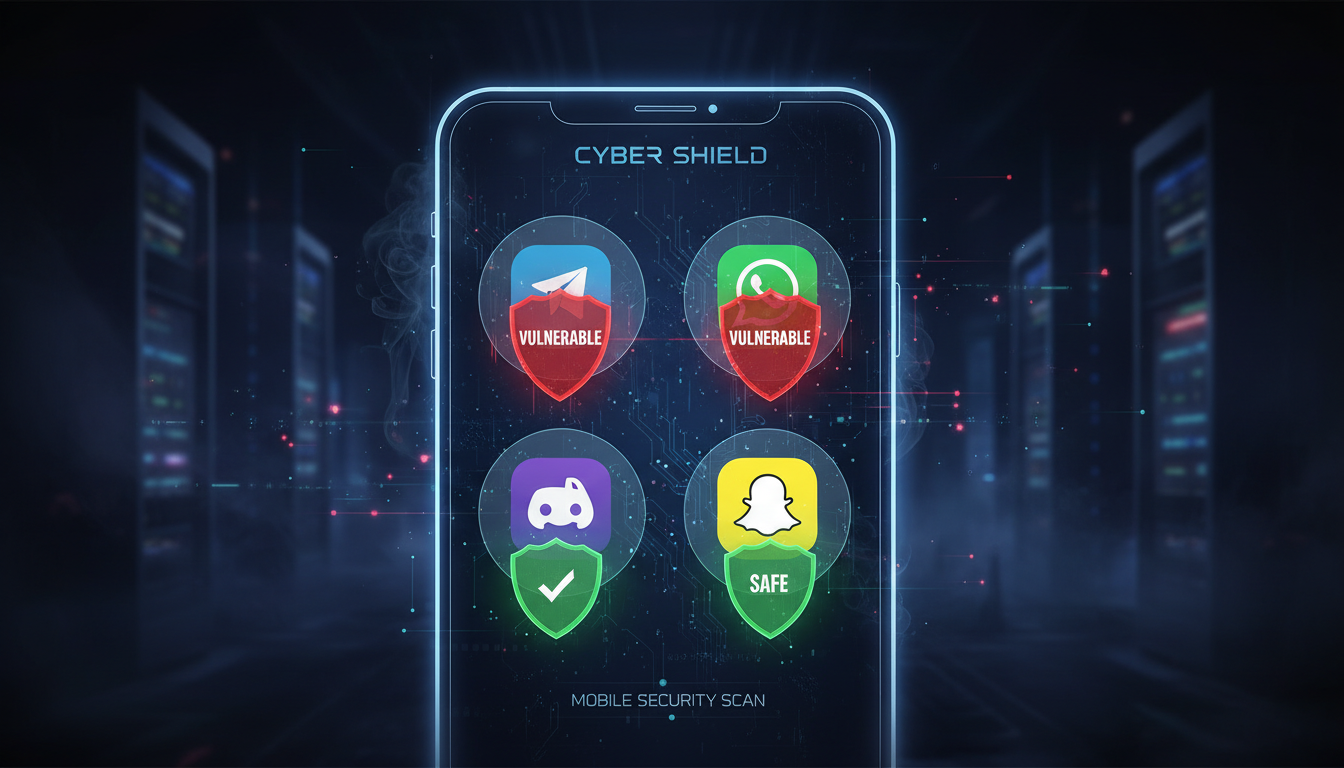
Testing was done with explicit permission from a consenting participant across multiple platforms. Here are the results:
-
Telegram — leaked the caller's real IP, even with a VPN active
-
WhatsApp — did not show results in the batch script's STUN filter, but still leaks IPs through a related protocol called ICE. Testing with the full Wireshark GUI confirmed WhatsApp does expose public IPs
-
Signal — leaked the IP once when a location-related permission prompt was accepted. Otherwise appeared safe when dismissed
-
Discord — no IP leaked during testing
-
Snapchat — no IP leaked during testing
The VPN problem
A VPN should mask your real IP. But during testing, the participant had a VPN active the entire time and their real public IP was still captured on vulnerable platforms.
This means a VPN alone is not a guaranteed defense against STUN-based IP leaking. The STUN protocol can bypass the VPN tunnel in certain configurations, especially if the app uses WebRTC or direct peer-to-peer connections that do not route through the VPN.
How to defend yourself
1. Block STUN at the firewall
Block UDP port 3478 in Windows Defender Firewall (Advanced Settings). This is the standard port used by STUN servers. Blocking it prevents STUN packets from being sent or received.
Keep in mind: this may break voice and video calling on some platforms, since they rely on STUN for NAT traversal.
2. Use a VPN (with caveats)
A VPN adds a layer of protection, but as testing showed, it does not always work. Treat it as one layer of defense, not a complete solution.
3. Avoid vulnerable platforms for sensitive calls
If hiding your IP matters, stick to platforms that do not leak it. Based on testing, Discord and Snapchat did not expose the caller's IP. Telegram and WhatsApp did.
4. Be careful with permission prompts
On Signal, the IP only leaked when the user accepted a location-related permission prompt. Always dismiss or deny unnecessary permission requests from apps during calls.
Key takeaways
-
STUN is not a vulnerability — it is how peer-to-peer calling is designed to work
-
Anyone with Wireshark/TShark and a basic filter can extract IPs from a voice call on vulnerable platforms
-
Blocking UDP port 3478 in your firewall is the most reliable defense
-
VPNs help but are not foolproof against this technique
-
Always get explicit permission before testing this on anyone — unauthorized IP harvesting is illegal